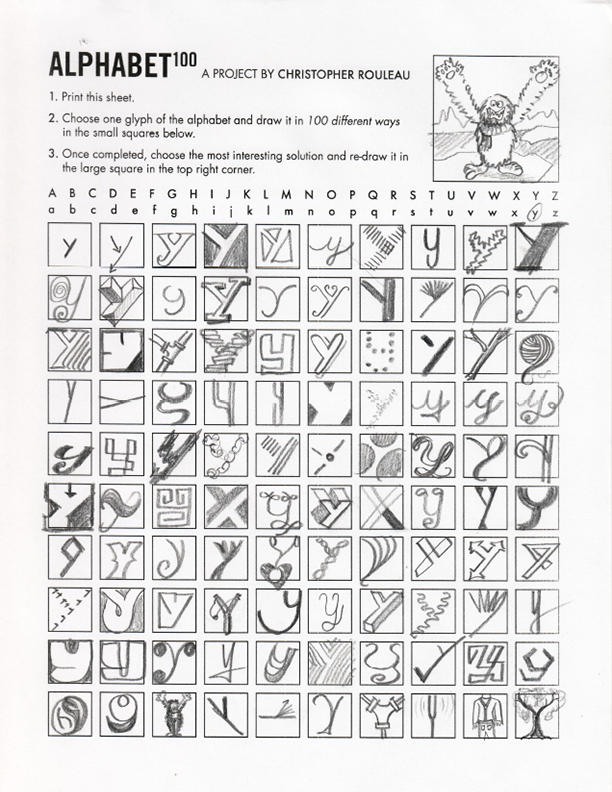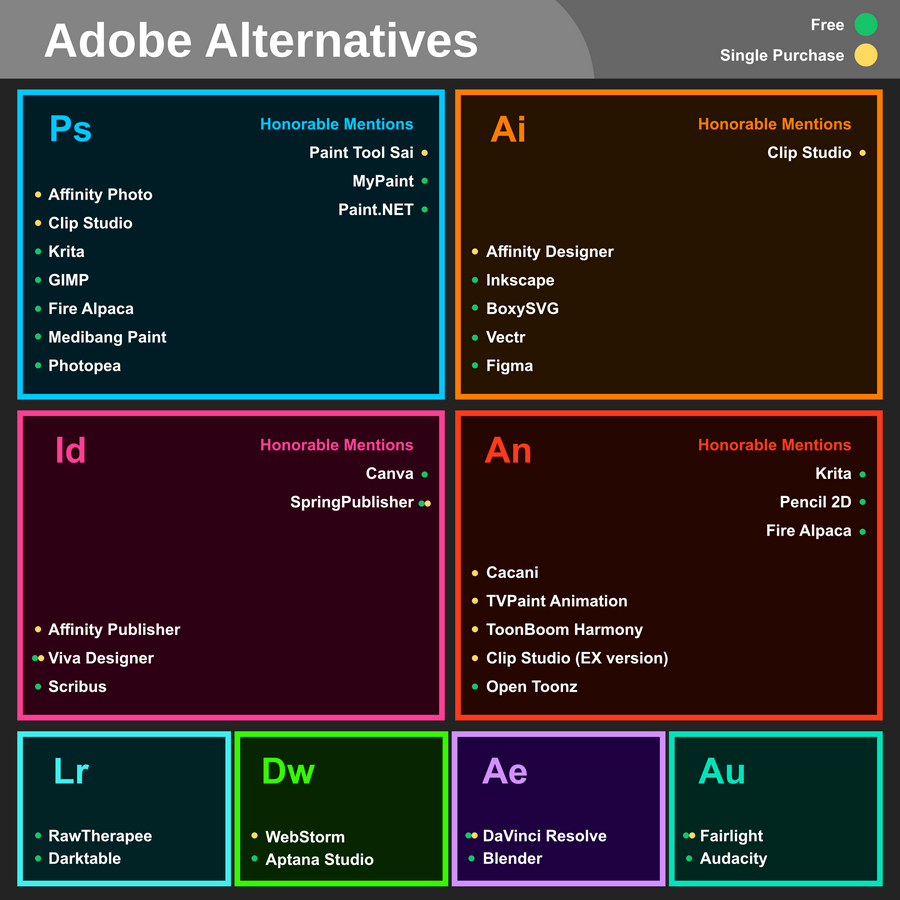
A  local educational organization has asked us to participate in a logo design competition. Today I'd like to see all of you create a logo for PETT. They are offering a $100 prize for the winning logo. All artwork must be original content created by the student so please avoid web graphics or clip art. I would love to see one of my students' designs used for this important organization. Work hard on this! The design specs are below. You will need to create this in Adobe Illustrator.
 
 
DVD Package Project
This week we are going to be creating a 3-D package and disc design for our annual backup our files campaign. It's important to create physical backup discs as insurance in the event we lose the files on our hard drives. Every pro knows it's not a matter of if we're going to be faced with hunting down files, it's a matter of when.
We're going to be working in Photoshop and Illustrator to create these designs. Below are two template files we can use as a start:
Outer Package Design Template
Disc Design Template
For this project you will be evaluated on creating a branding piece for you as a designer. You will need to have the following components:
  • A logo that represents you as a professional designer
  • A reference to the time frame that the disc represents (2012-2013)
  • A short paragraph that describes the contents on the disc (applications used, classes represented, etc.)


Watch the Chuck Close Letter to my 14 Year Old Self video and post thoughts to your journal
Download theinstruction sheet for the grid drawing project.
You can work in any media you wish and choose your own subject matter. All drawings need to be sized to 8" x 12" in order to create a consistent grid. In Photoshop we'll be sizing the image to 4" x 6" (50% of the finished drawing). We'll be using a grid with 2 subdivisions. To edit the grid choose Preferences>Grids, Guides.
 
 
All Students
Watch the Larry Lessig video that focuses on how new technologies are changing the nature of copyright. Complete the Think questions on the TED-Ed page. Save your answers.
9th - 11th Grade Students
Continue to work on your photography presentations. If you have completed your presentation work, complete the Photoshop Tutorial found at this site. The source files for this project can be downloaded by clicking here. If you would like to use an alternate file for the parrot, please be sure to use  similar color tones. 

12 Grade Students
Continue to work on your senior project presentations. Post your Powerpoint presentation to your journal using the document post function in Weebly. You can also email me your finished presentation at alt@cciu.org. I would like to review the presentations for spelling and content. 
I will call in early in the class to speak with anyone with questions or you can tweet me short questions if you prefer.
 
 
Seniors - finish work on all products. These should be done by Friday, April 19th. We'll spend the next week reviewing portfolios, cleaning up presentations and doing practice presentations on Friday, April 26th. Some will be practice presenting in the morning class. I'll let you know who you are by April 19th.

9th, 10th, 11th Grade Students - My Favorite Photographer- The photo theme project is going to be a little bit different. You can work with a partner on this project. Here are the steps for completing this project:
  1. Google-image search the term "famous photographers" and choose a photographer whose work you admire. 
  2. Image-capture five to ten images of his/her work and create a slideshow (Powerpoint, iPhoto, Prezi or Weebly page) that shows the work.
  3. Present your slide show to the class with your partner. If you can locate a video interview of the artist you might want to play that as well during your presentation.
  4. Lead a discussion about positives and negatives of the photographers' work. State what you like about the work and why.
  5. Choose one image that stands out to you and try to recreate the shot here on campus using our cameras. Post your slide show and images to your ePortfolio.
This is a model of what your finished project might look like.


Monday: Comparing and Contrasting Two Artists Handout
Tuesday: 
 
 
Yearbook 
Congratulations on putting together a really fine looking chronicle of this school year. Design-wise, this book is well thought out and communicated.  I've had discussions with both the AM and PM classes and based on those discussions, below are some suggestions for next year's work on the book:
  1. Start Earlier: Break the book into sections and teams for completion early in the school year. Every student will have photography, scheduling and design responsibilities that are clear from the beginning of the year. This will happen the second week of September next school year. We'll meet at the end of every month to discuss upcoming events that need coverage.
  2. Know InDesign: This was a major stumbling block. Only five out of fifteen 10th grade students felt comfortable enough working with InDesign to actually finish a page layout. We'll be working the rest of this school year in incorporating InDesign projects into our schedule. The first project we're doing after the yearbook is a mini calendar project and we'll be following the same design process we use for the yearbook. There will be other projects that incorporate InDesign into their completion as well.
  3. Improve your photography skills: All of us can improve our camera skills - this is a never-ending task. We also need to get better at defining what quality images are and editing out bad shots from the beginning. We spent a good portion of time weeding out unusable images. If we do this as photographers at the beginning, we won't have to spend so much time flipping through images when we switch to design mode.
  4. Make Deadlines: Talented designers that can't meet deadlines lose customers. We'll be working on meeting deadlines on all project work. Art as a business is a reality all of you will face if you're going into the commercial art field. Meeting deadlines is a matter of professional pride and if you can't do it, somebody else will. It's that simple.
We still need to finish some yearbook work. The prom, senior awards banquet, the yearbook dedication and graduation all will need photography and multi-media created for the QR Code section of the book. We should also be aware of any other events that we should be covering such as field days, end-of-school events, etc.

Senior Projects
Seniors will be presenting their finished projects on April 30th and May 1st. We'll be finishing up project work in the next week. You should also be working on how you're going to present your portfolio and product over the next two weeks. Make sure that you have fixed your portfolios so that all filler text is either completed or deleted. You can see the judging criteria by downloading this document. Be certain that you hit every judging criteria. You're going to need to practice your presentation and have a clear map for the order of how you'll present your project. It should include a demonstration of a skill. It doesn't have to be complicated - keep it simple so that you could do it blindfolded.
All seniors will be expected to do practice presentations on April 25th and 26th. I'll be sitting down for one-on-one meetings to review your ePortfolios from April 23rd & 24th. Make sure that you're ready to show both your ePortfolio and your class portfolio at that time. Check for any spelling errors that will make you look unprofessional. In our field, spelling counts!
 
 
Crunch Week - This is our final week to finish this year's yearbook. A number of photo sessions are scheduled. We have tracked those areas that we need to work on this week and they are listed on the class' white board. Try to keep this board up-to-date with anything that you feel could use improvement. We're trying to create the best book ever done at PIckering and we need everyone thinking and analyzing how we can improve over past issues.

Theory This Week  - One area that we are going to be stressing this week is the concept of creating page layouts that will print and transfer well. This means using Preflight Profiles in InDesign. Download this preflight document and we'll be discussing how this profile can help us avoid pitfalls in getting our book to the publisher and saving time and money by avoiding mistakes.

Our Workflow -  for creating pages must be consistent and mirrors what is done in industry. Here are the basic steps:
  1. Copy images from the server to your computer. You can use Bridge to do this so that you're only copying those images that you will definitely use in your layouts. Pick the BEST images you can find. If you can't find them - take them!
  2. Create a separate folder for each page layout you'll be working on. Move all images, logos and graphics into the folder so that all items that go on a page are together in one place. This organization step is critical!
  3. Create a new InDesign Document - 8.5" x 11, .25" margins, .125" bleed, and if you're doing a two-page spread, create three pages in your document. This way we'll be able to see both the left and right side of the pages together.
  4. Create your layout. You can use and adapt the templates that are located on Tucker's Resources to get started. SAVE OFTEN - every five minutes is a good rule of thumb for saving.
  5. Place your original photos into graphic frames by selecting the frame then choosing File>Place
  6. Scale ALL images proportionally - you can set this to occur for all frames on your page by selecting all of them and choosing Object>Fitting>Frame Fitting Options>Fill Frame Proportionally. This will prevent us from stretching images. They don't look good using that method.
  7. The placed pictures are unedited at this point. They are not the correct resolution for printing. They might be light or dark or have a color cast. They are simply linked jpeg files at this point. The next steps are really important to get right.
  8. Determine the actual size of the images by clicking on them with the white arrow selection tool or clicking on the resize circle. Open Transform from the tool menu and mark down the width of the image. Make sure that you're not seeing the width of the frame when you do this.
  9. Control-click on the image and choose>edit with Photoshop. This will launch Photoshop and open the image you just sized in InDesign.
  10. Choose Image>Image Size. This will open a dialog box that you will use to resize the image. Use the width you marked down in InDesign and choose Auto… and select 133 line, best setting. Photoshop will reset the resolution so that it's perfect.
  11. Fix Color cast, lighten the image to bring out darker details if necessary using levels or brightness/contrast layer adjustments. Flatten the image down.
  12. Choose Filter>Sharpen>Smart Sharpen and set the sharpening to 80 with a radius of 1. If you click on the preview you will see a before/after of how details like hair and eyes really come into much better view.
  13. Choose Image>Mode>CMYK Color - this will allow our printer to separate the four process colors.
  14. Choose File>Save as and save as a tiff file.
  15. Return to InDesign and relink your edited photo to replace the jpeg file. Redo these steps for each image on your page making sure that you're getting the correct size for each image!
 
 
We have a busy couple of weeks coming up. We have started putting together designs for this year's yearbook in order to make this important deadline. A number of photo shoots need to occur this week. This Tuesday afternoon our seniors will be taking the hands-on part of the NOCTI exams. We all will be doing some practice exercises to make sure we're comfortable with tasks that may appear in the exam. These tasks include:
  • Straightening an image using Photoshop's new crop/straighten tool.
  • Removing color cast and color-correcting an image.
  • Creating a logo trace in Adobe Illustrator.
Make sure that you're checking your student email accounts regularly as a number of working Google documents have been shared with you. If you haven't indicated which pages you would like to work on yet, do so early in the day on Monday. Everyone will be called upon to do the hard work that is necessary to create a memorable yearbook.
Please let me know if you have any issues getting to the following yearbook tools:
  • Tucker's Resources>2013 Shield Assets>Yearbook Templates
  • Google Docs>2013 Layout Guide Spreadsheet
  • Google Docs>AM or PM Media Blitz Presentation

We'll be using this reference to complete the creation of our yearbook. Please download this first thing on Monday. It will help you understand how designing for print production differs from how we would design for digital web or electronic documents.
 
 
I'm beginning the week at a conference in Hershey. I presented a session on QR Codes this morning and on Monday I'll be presenting with Ms. Kleinfelter and Mrs. Moylan. As a result, I will not be in class on Monday. I'm going to let you choose your project today - but I expect all of you to post a finished work by the end of class. 


Here are your choices for today:

Create Your Own Font: One of the presenters I worked with this morning (Christine DiPaulo) shared this terrific website that allows you to create your own font. The site is called Fonstruct. What I'd like you to do before the end of class is this:
  1. Create a free account on Fontstruct. Look at some of the fonts that others have created and that you can download.
  2. Create either an uppercase or lowercase version of your first and last name. I recommend zooming in to see the fine details of the font you're creating. There are basic tutorials that will show you how to use bricks of various shapes to create your dream font. Post a screen capture of the lettershapes that you create.
  3. Make sure you save the project on the site and you mark down both your username and password so you can return to finish this on Tuesday. It would be a good idea to bookmark this site as you'll probably want to work with this a lot more!

Create two mousepad designs:
If you won a mousepad kit in the past week or two, create the design for your mousepad. The design can be created in either Adobe Illustrator or Photoshop. The finished dimension is 9.25 in. x 7.75 in. If you're working in Photoshop, you'll need a resolution between 200 and 300 pixels per inch. Post a screen capture of your finished design. Make sure you save the finished file to your hard drive. If you didn’t win a mousepad, I’ll give a kit to any student that also submits a yearbook cover design today.

Create a band, then create a band logo
This is a project we did several years ago and I'd like to see what you can do with this design challenge. Google "name my band" and try out a few of the suggested name creators. Decide on a name and then using Adobe Illustrator, create a two or three color logo for your new band. You'll need to create thumbnails for generating ideas and then expand one thumbnail for a full design in Illustrator.


If you didn't make a journal entry on Friday - I'll let you make it up on Monday - but it has to show the projects we worked on last week. Don't waste time!


A few of you struggled with yesterday's tutorial. To add a little more help I've recorded two videos which will help you complete both parts. Do the Illustrator section first and follow the video instructions included:
Part 1: Illustrator Part

Part 2: Photoshop Part
Today is Photoshop's 23rd birthday. If you finish the abstract color project or you still have trouble getting it to work - try this classic Andy Warhol project using an image of someone you like. This works best on a portrait with a simple background. The larger the image the better.